


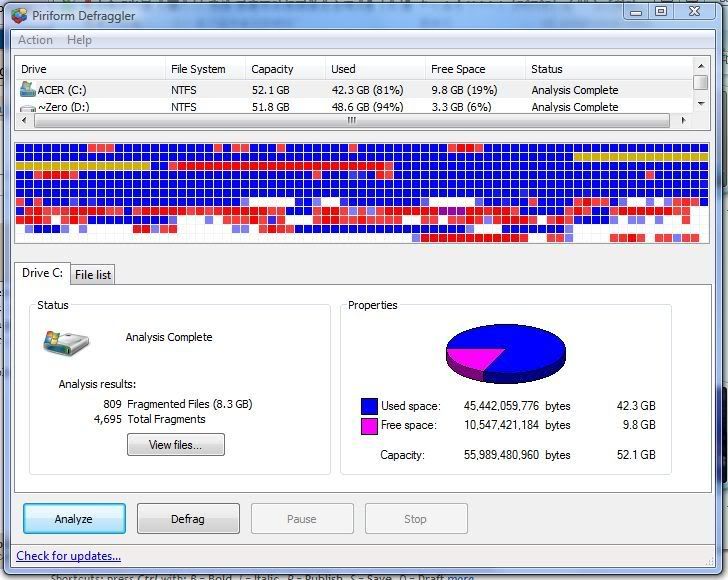
Windows integrated defragmenter, which usually takes almost forever to defragment a single drive, and you don't even know how's the result... I've been using it, until I discovered a better defragmenter, called Defraggler.
I just defragmented my harddisc recently, so not much fragmented files now. But what good is that you can actually see how your fragmented harddisc looks like, and the process of defragmenting!
I once had 10+ fragments, the Defraggler finish its job in less then 3 hours, and I'm using my computer at the moment, not even a single lag occurred to me. It's like it finish its job without I even knowing about it.
You can download it from here, their official website.
The team that developed this Defraggler are the same team that developed the CCleaner I introduced some time ago.
20 September, 2008
Defraggler

17 July, 2008
Revo Uninstaller
In the past, when I wanna remove a program, I usually run the unintaller from Windows Add/Remove Program, for a clean uninstall, I usually restart immediately, open up program files and delete all of the left over directory, then I run CCleaner and make sure the program vanish completely from my PC. That was a lot of work, and may not be clean enough.
I came across a freeware, Revo Uninstaller.
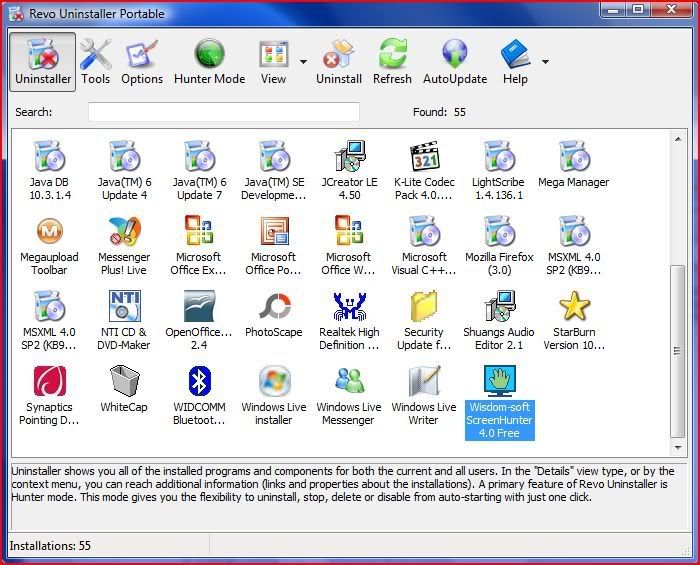
What it does after one click:
1) Create a restore point
2) Analyze program before uninstalling
3) Run program uninstaller
4) Scan for left over files
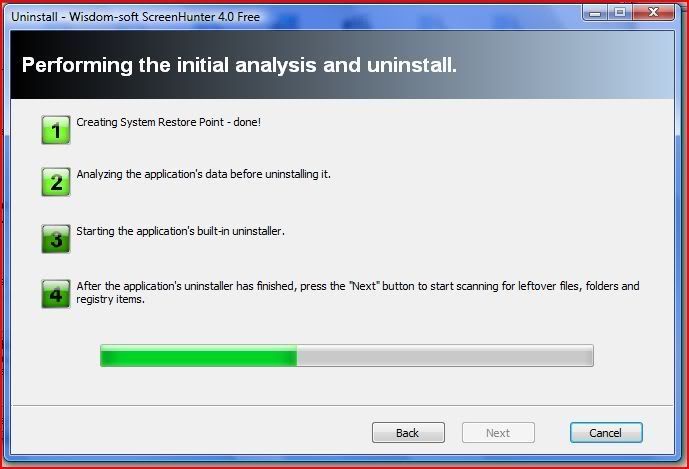
That was neat!
Not only the uninstaller, it also has some built-in tools, like the Autorun Manager which lets you choose your startup program.

Well, everyone've been complaining how slow your windows start, why not delete some unnecessary startup program. Just highlight the startup you don't want it to start during startup, and delete entry. I have only 5 programs for startup, it's faster this way (although still can't compete with xp, which my sidebar has been taking a lot of time starting up, and I can't live without it. yet.)
The interesting part of this Revo Uninstaller is its Hunter Mode and the Drag and Drop Mode.
 | The Hunter Mode, a crosshair like this appears on your desktop, just aim at any program interface or icon on the desktop and a context menu will show up for you to uninstall the pin-pointed program. This is useful when you know you have suspicious program but you can't find it anywhere in the uninstaller (Probably the program didn't install itself to the registry) |
 | The Drag and Drop Mode, works the same as the Hunter Mode, except that you drag the program interface or icon into the fire (as if you're throwing the program into the fireplace). |
Interesting isn't it?
The built-in Junk Files Cleaner works almost the same as CCleaner, except that CCleaner even scans for unused registry. Consider having both.
BE CAREFUL when uninstalling programs you don't know. You wouldn't want to accidentally uninstalled any hardware drivers or windows component. Consult Google when you come across unknown program.
Download Revo Uninstaller from here
More information on CCleaner
05 February, 2008
System Requirement Test. Can you RUN it?
Do you have this kinda experience?
You have a game in mind that you wanted to play for a long time, but you've been wondering whether your hardware can run that game or not...
OR! You bought a new game, but after installing, you couldn't play it at all because your hardware isn't good enought.
Here's a website that tests your system and hardwares to check whether you can run a specific game well enough or not. It has a big list of games for you to choose. The link's below:
How to use it?
Just select the game you wanna test for your system. For example, now I wanna test whether my computer can run World of Warcraft smoothly or not...

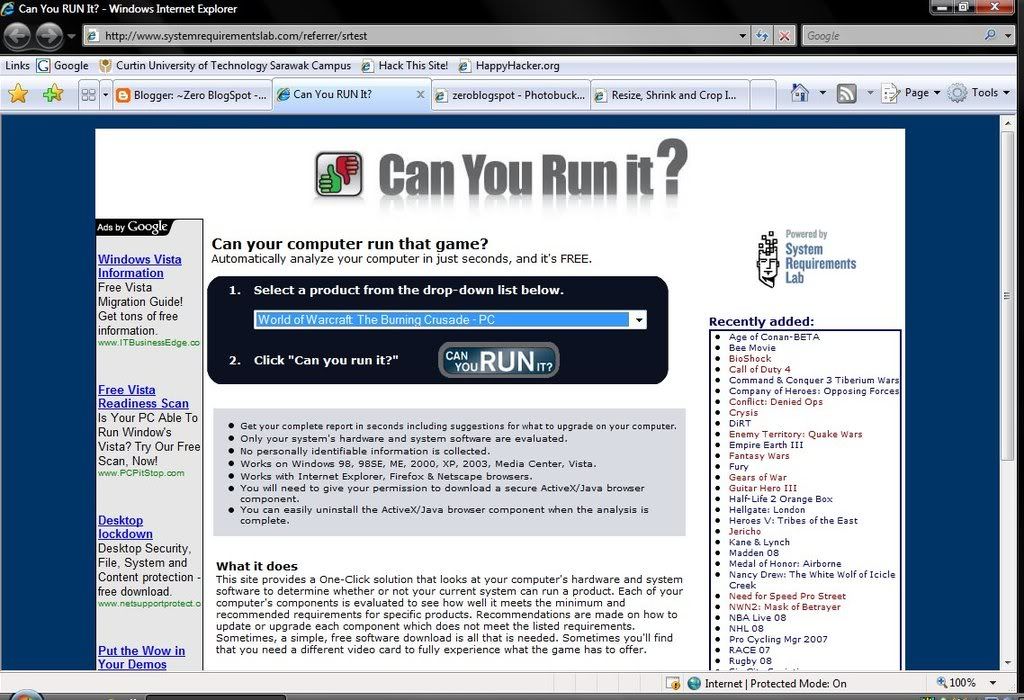
Install anything that is given, install the Active X plug-in, and after a while, the results come out.

And...oops! looks like my system isn't sufficient enough to run this game. I'm glad that I didn't purchase this game yet. Before I buy this game, I should upgrade my video card first...
Sometimes, you may pass the minimum requirement, but fail the recommended requirement. You can still run the game, but not in perfect condition. Maybe. I passed the minimum requirement for Warcraft III but failed the recommended reuirement, I can still run the game, but in minimum system settings(especially graphic).
Anyway, good luck~
To be a gamer, you must have good hardware before you can have good skills. haha~
27 January, 2008
Mz Vista Force - Optimize the speed of your Windows Vista
Ever since you changed to Windows Vista...have you been complaining for the loading speed? Even though you keep on adding more and more RAMs for your pc, your Windows Vista still doesn't seem to be fast enough? Miss your Windows XP?(lol~)
How about trying this?
Mz Vista Force, a powerful system tweaker that applies the best value for Windows Vista registry.
Download from one of the Download Site, install it, and follow the instructions below to speed up your Windows Vista.
Download Sites:
Note: For Mz Vista Force to run, you need to have Microsoft .NET Framework 2.0 installed. Normally it is preinstalled in your Windows Vista, but if it isn't(or you accidentally removed it), you can download and install here
Once you finished download and installing, go ahead and run the program. Before performing any actions, it will promt you to backup your registry, it is recommended in case you're not satisfied after you've done the tweak.
In the first tab, is the Performace Tweak. The first option is your L2 cache size, choose your processor in the right selection box. If your processor isn't listed there, then choose the processor that has the same L2 cache size as yours. 2nd Box, is the priority control, just choose the one that fits you. For heavy gamers, choose the fourth option. Below is the miscellaneous, just tick all.
Note: If you still have some 16-bit programs installed(example Windows 3.x programs), DO NOT disable 8.3 filename creation. If not, the program may not run.


Performace Tweak 2nd tab, just choose all selections as shown below for maximum optimization(except for RAM, choose 512MB if your RAM is 512MB).
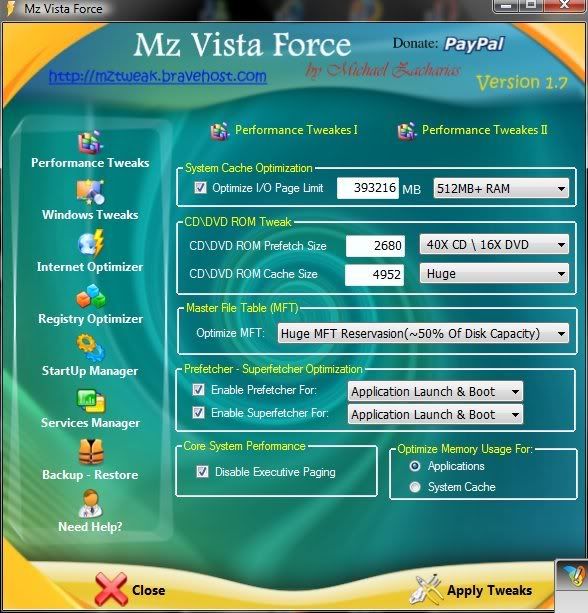
Ok, now let's go on to Windows Tweaks. On the first tab, fill in the values as shown below.
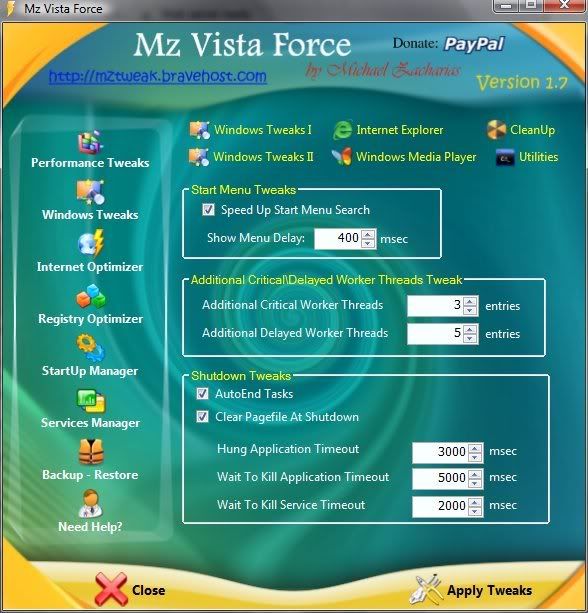
Go on to Windows Tweaker II. Follow as shown below.
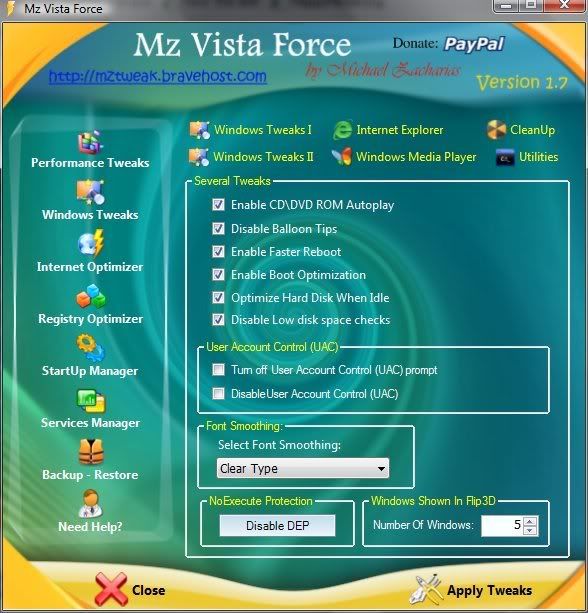
Ok, now go on to Internet Explorer tweaks. Follow as shown below.
Note: Checking the [show menu bar above the navigation bar] will change the theme and disable aero interface for IE, thus speed things up A LOT(First time I feel IE is faster than Firefox). However, if you DO NOT WANT to disable the aero interface, please UNCHECK it.

Next, on to the media player Tweaks.
This part is optional. It doesn't affect much for your computer, but your Windows Media Player only. If you do not use Windows Media Player, you may just ignore this step. For optimized speed, just tick all checkboxes. You may want to uncheck some to suits your usage style.
Ok, click on the Apply Tweaks. A pop-up box will appear. Click on Reload Registry.
Next, go to Registry Optimizer. Click on next, and wait for it to create a new registry hive. Once it finished creating a new registry hive, apply and restart your computer.
Now you can feel the optimized speed of your Windows Vista. Enjoy~
If you're not satisfied, or it ruined your system, or you may just simply wants to revert back to your old settings, just use the Restore function of Mz Vista Force.
If you're very satisfied, and want to keep the changes, you can just uninstall the Mz Vista Force as you wish. You just need to do this once, you do not need to keep this software installed for the effect to work.
External Links:
Mz Vista Force Developers' Website
Mz Vista Force from CNET Download.com
Mz Vista Force from PC World
Mz Vista Force from Softpedia
Search Mz Vista Force from Google
24 January, 2008
CCleaner
It's almost Chinese New Year, some(especially chinese) will be busy cleaning their household before the actual start of Chinese New Year, most do it in New Year Eve or the day before.
After you've done cleaning your household of 'hardwares', why not, perform a 'housekeeping' for your computer harddisc too!
Introducing this powerful CCleaner!
Formerly knowns as CrapCleaner, it cleans up unused craps out of your harddisc.
Key Features:
- Clear internet temporary files. Empty internet temporary folder, delete cookies, browsing history etc.
- Clear windows temporary files. Clear cache, search histor etc.
- Clear system dumps. Empty recycle bin, memory dumps etc.
- Clear cache of different third party applications.
- Scan and clear unused windows registry. Most applications will add a registry when you installed it. But most, after you uninstall that program, it did not delete the registry. With CCleaner, it will scan and delete those left overs without harming your system registry. It also offers you to backup your registry before you do the cleaning in case of system malfunctioning(haven't experienced this before).
- Get you a list of all programs and the uninstallers. Lets you choose to uninstall programs that you do not use.
- Manage Startup programs. Let you choose what program you want for your windows to launch during startup. Too many programs may results in longer startup time. Especially useful for low performance hardwares and Windows Vista users.
You can see how much space I can get after housekeeping after one month of usage(I 'CCleaner'ed my harddisc one month before):
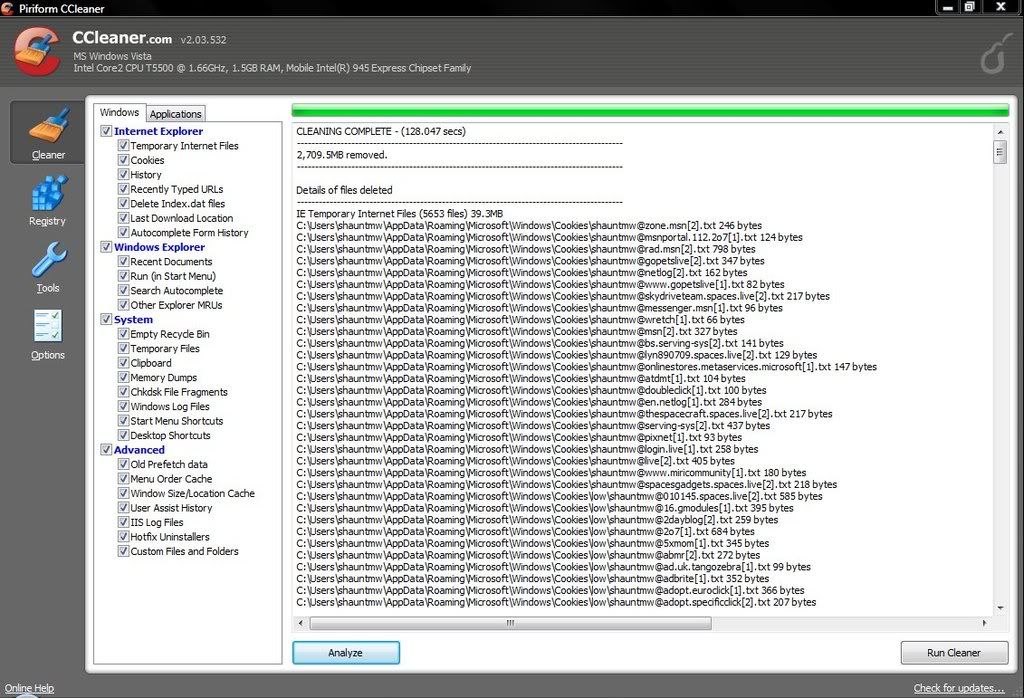
My cache has took up to 2GB of space! for one month only!
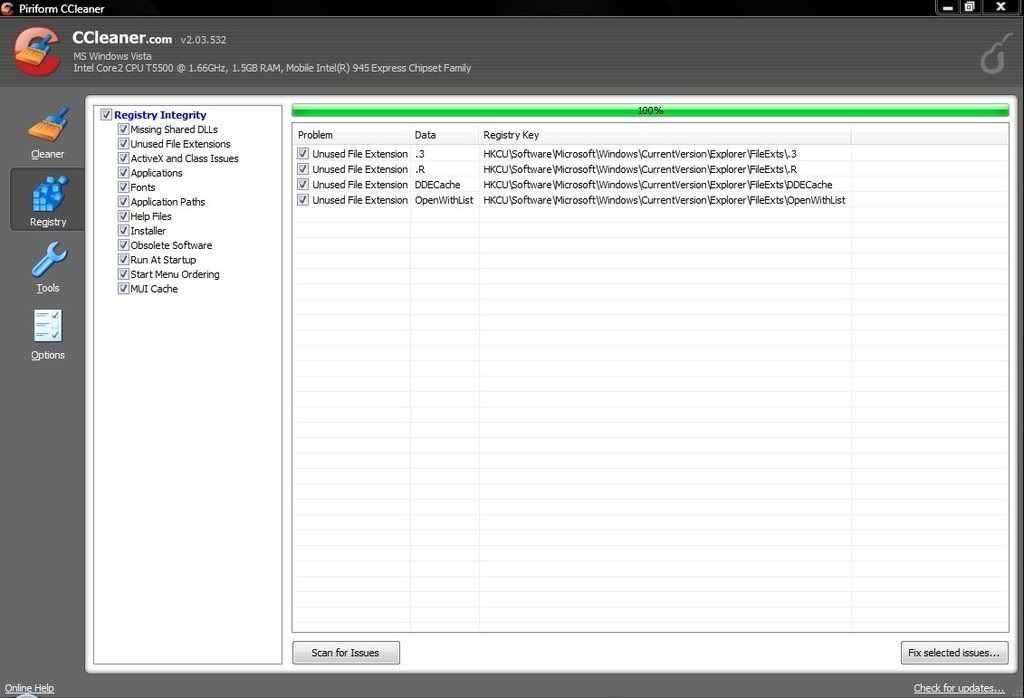
Some registry that no longer be used. Don't be surprised if you got thousands of unused registry listed there for your first scan. It is possible. I'm one of the examples.
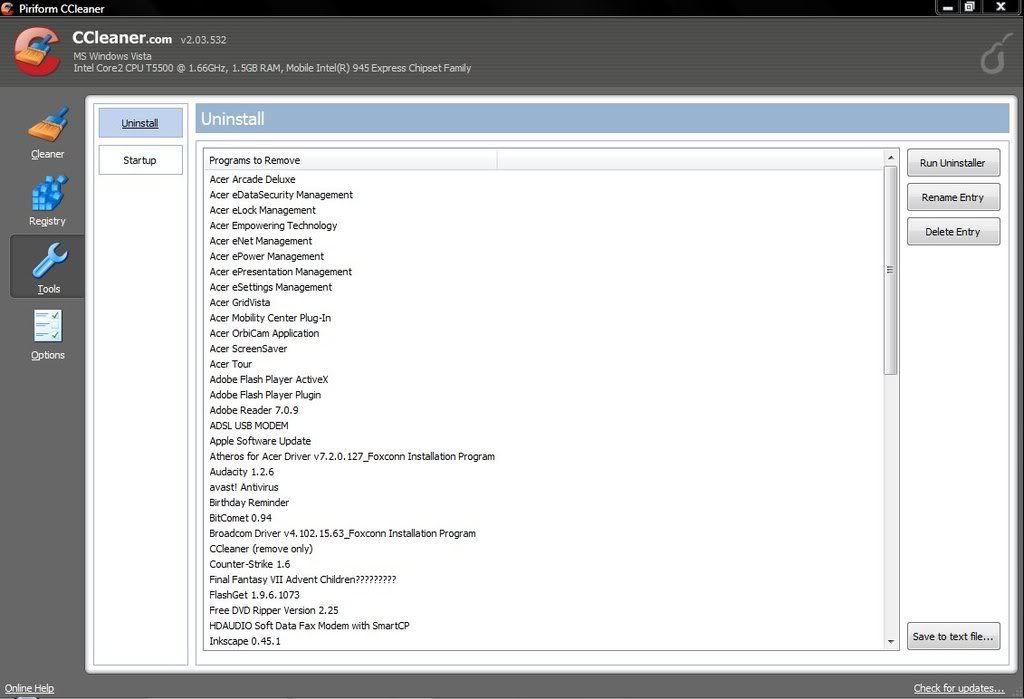
You can uninstall your unused programs and control your startup programs in the 'tools' tab
Download Link:

External Links:
CCleaner official website
CCleaner search from Google
CCleaner from wikipedia
CCleaner from CNET Download.com
CCleaner from PC World
CCleaner from Softpedia
15 January, 2008
How to check your RAM without opening the cover?
You wanna upgrade your RAM, but you do not wanna open up your cpu/laptop cover for some reasons(it could because that you wanna avoid breaking the warranty), here's a solution for that.
visit here(must be on Internet Explorer. don't get fustruated...I know some of you hate IE. Bear with it), tick on the tick box and start scanning. Download whatever that it says you need to download. Don't worry, it's just a very very small application that doesn't need installation.
It takes time, so be patient.
If you really can't wait, or it doesn't work for you...
Looks like the only way(and the fastest way) is to open up your CPU yourself...

