


How to make my Firefox load page faster?
How to make my Firefox downloads faster?
- by installing a Download Manager into Firefox
- by intergrating my Download Manager into Firefox
How to make my Firefox safer?
- by installing an extension that blocks all internet scripts
- by clearing all private data stored in Firefox everytime I close it
How to make my Firefox load page faster?
First, install Fasterfox add-on into your Firefox. Fasterfox is a Firefox extension that speed-up page loading time. Once you installed Fasterfox, restart your Firefox for it to be working.
Install here
Go to Tools -> Add-ons, click on the Fasterfox options. Preset should be Turbo Charged, so leave it as it be. Go to Fasterfox tab, tick on the top checkbox, which should Enable Enhanced Prefetching.
What is Enhanced Prefetching?
How to make my Firefox downloads faster?
- by installing a Download Manager into Firefox
Install DownThemAll! add-on into your Firefox. DownThemAll! is a Download Manager extension for Firefox. It can pause and start downloads at anytime you wishes, without losing any data. Once you finished installing, restart your Firefox for it to be working.
Install here
- by intergrating my Download Manager into Firefox
If you have a Download Manager such as FlashGet, Orbit Downloader, BitComet etc. This FlashGot extension will come invery handy for you. Instead of copying the file url and paste them into your Download Manager, you can FlashGot them. Everytime you download a file, Firefox will prompt you which way you wants your file to be downloaded, either directly using Firefox, or with your Download Manager.
Install here
Once you finished installing, restart Firefox for it to be working.
If you have more than one Download Manager, you may want to choose which default Download Manager you want to use for normal downloads. To choose/change, go to Tools -> Add-ons, Options for FlashGot extension, and choose your Download Manager in the combobox.
How to make my Firefox safer?
- by installing an extension that blocks all internet scripts
Most malicious software, trojan worms, viruses etc. are triggered to install itself into your computer using javascripts or java in the website. IF you disable ALL javascript and java in EVERY website, you can say, almost have zero risk while surfing the net(just surf, no downloading). However, your internet activity would be greatly limited, since you can only view normal web pages. Besides, without javascript, you cannot sign in or log into any website. With this NoScript extension, it's like a filter for javascript and java for you. You can choose to eliminate all javascript in unknown website, only allow trusted website to use javascript. This may greatly reduce the risk of getting hacked, depends on your internet usage.
Install here
Once you finished installing, you must restart your Firefox for it to be working.
- by clearing all private data stored in Firefox everytime I close it
This is easy, and doesn't need to install anything. By clearing all private data stored in Firefox cache everytime you close it, you will clear all temporary files, cookies etc. Especially cookies, it stores your log in information, which mostly information of your username and password to whatever website you signed-in. If you're using public computer, clearing all internet temporary file is HIGHLY advised.
To clear all private data everytime you close Firefox, just go to Tools -> Options, under the Privacy tab, tick on [Always clear my private data when I close Firefox]. And that's it.
External Links:
Fasterfox Official Website
DownThemAll Official Website
FlashGot Official Website
NoScript Official Website
wikipedia: Fasterfox, DownThemAll, FlashGot, NoScript
Google: Fasterfox, DownThemAll, FlashGot, NoScript
More information on Firefox
More information on FlashGet
More information on Orbit Downloader
26 January, 2008
Firefox add-ons: For a faster and safer firefox


17 January, 2008
How do RSS works, and how to use it?
For your information, RSS stands for 'Really Simple Syndication'
I'll not explain any deeper. For more details, you can look it up on wikipedia or you Google it.
Let's jump to the main question. How do RSS works?
Before the RSS even born, people used to check updates of a website, or blog, or whatever by visiting the website frequently. This, is very time consuming if you have about 30 friends' blog and 3 forum or news site to check...
Now, with RSS, you can save A LOT of your precious time. After you subscribed with the website you wanna keep track of, you'll be notified when the website is being updated. So all you need is to check out the updated site instead of every single one of 'em.
Watch a simple video explanation of RSS from YouTube
So, the most important thing here is, how to use it?
It's easy. All you need is a RSS reader. It could be your browser, it could be an external software, or a web-based reader, depends on your need.
How to use rss on IE7? (browser)
How to use rss on Firefox? (browser)
How to use rss on Mozilla Thunderbird? (e-mail client)
How to use rss on Google Reader? (web-based reader)
How to use rss on Internet Explorer 7?
Go to whatever website you wanna subscribe to, and click on the rss icon on your toolbar. (If it's dark and unclickable, that means the website you're looking at isn't supported with rss feed)

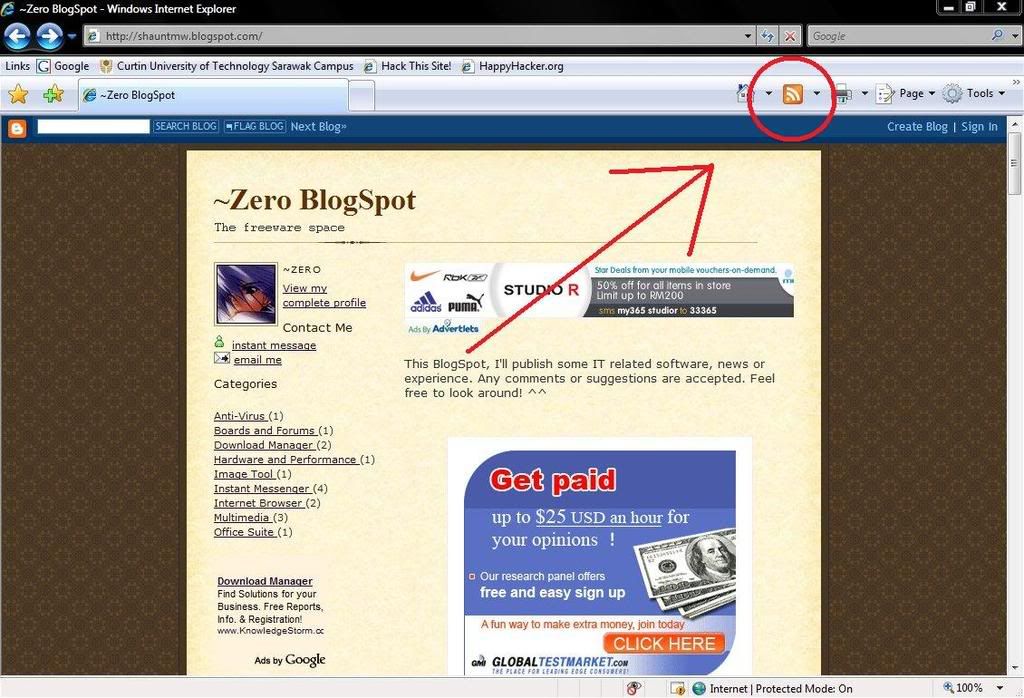
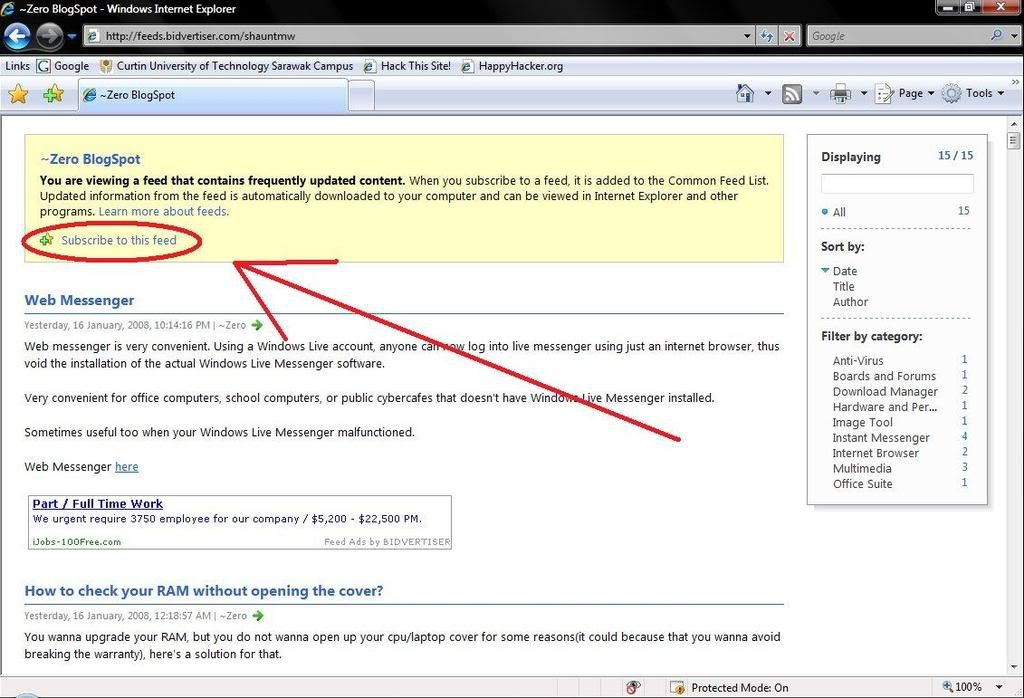
A page like this will most likely appear. Just click on the 'Subscribe to this feed' to subscribe.
You'll then be promted to save in which location. After saving, you can find the feed under the feed tab.
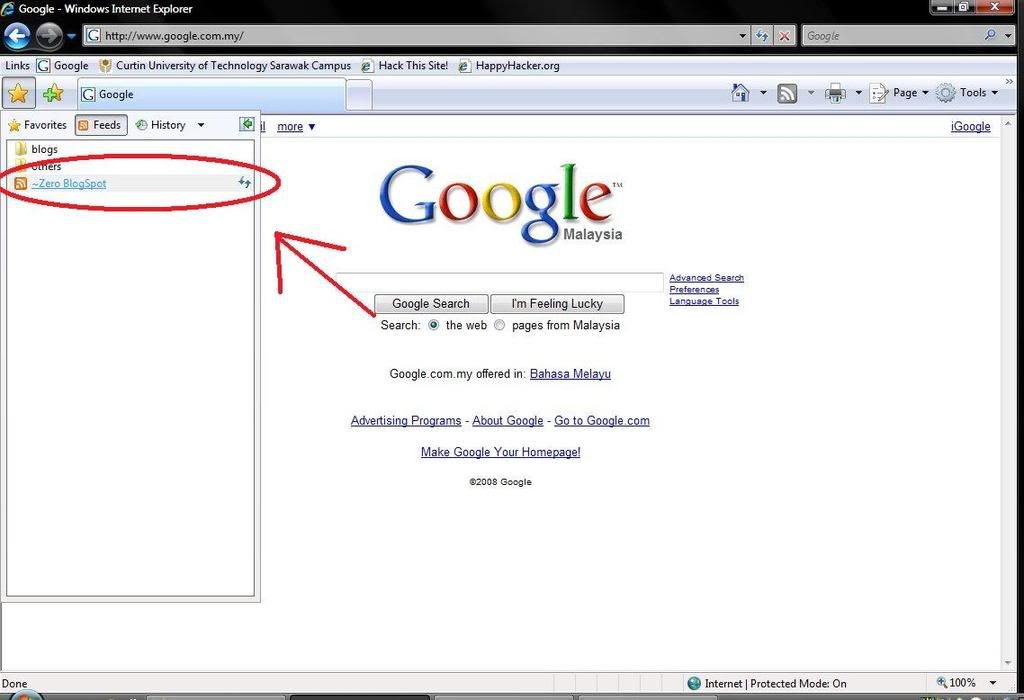
Viola~ done! So go on and subscribe to all your friends' blog and new sites as you want!
back to top
How to use rss on Mozilla Firefox 2?

Go to whatever website you wanna subscribe to, and click on the rss icon on the address bar. (If there're nothing, that means the website you're looking at isn't supported with rss feed)
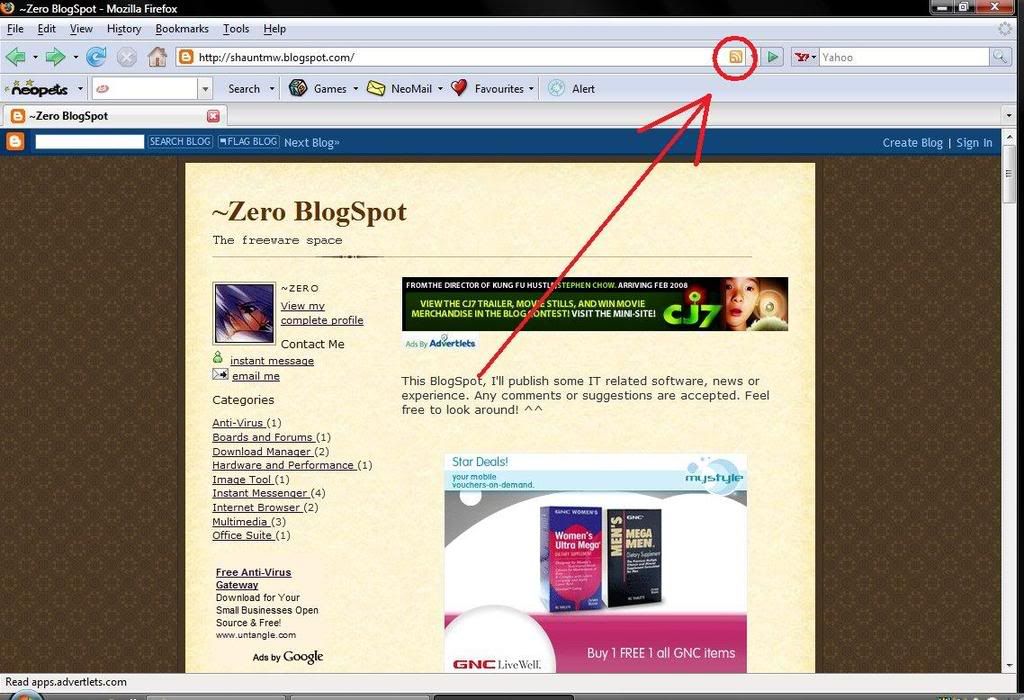
A page like this will most likely appear. Just click on the 'Subscribe now' button to subscribe.
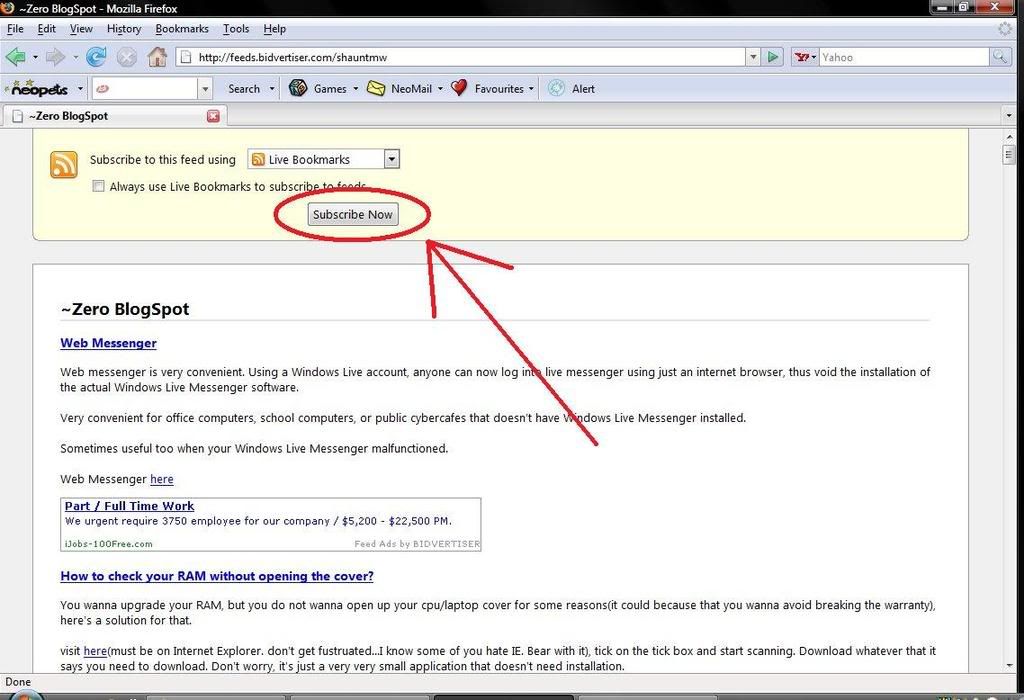
You'll then be promted to save in which location. After saving, you can find the feed under the bookmark menubar.
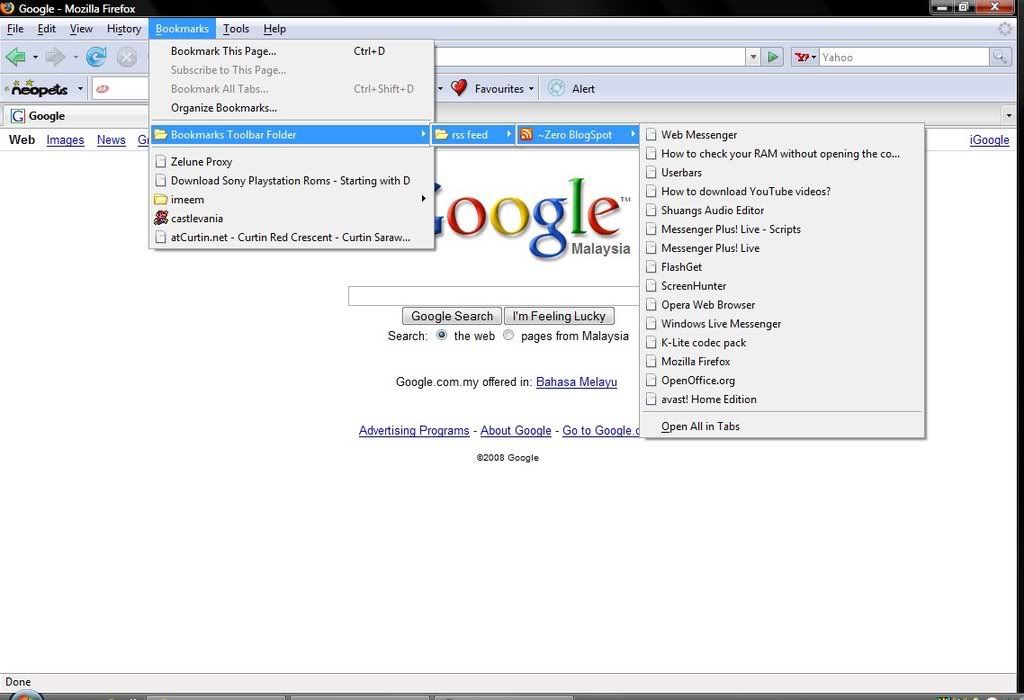
Viola~ done! So go on and subscribe to all your friends' blog and new sites as you want!
back to top
How to use rss on Mozilla Thunderbird 2?

Download and install Thunderbird
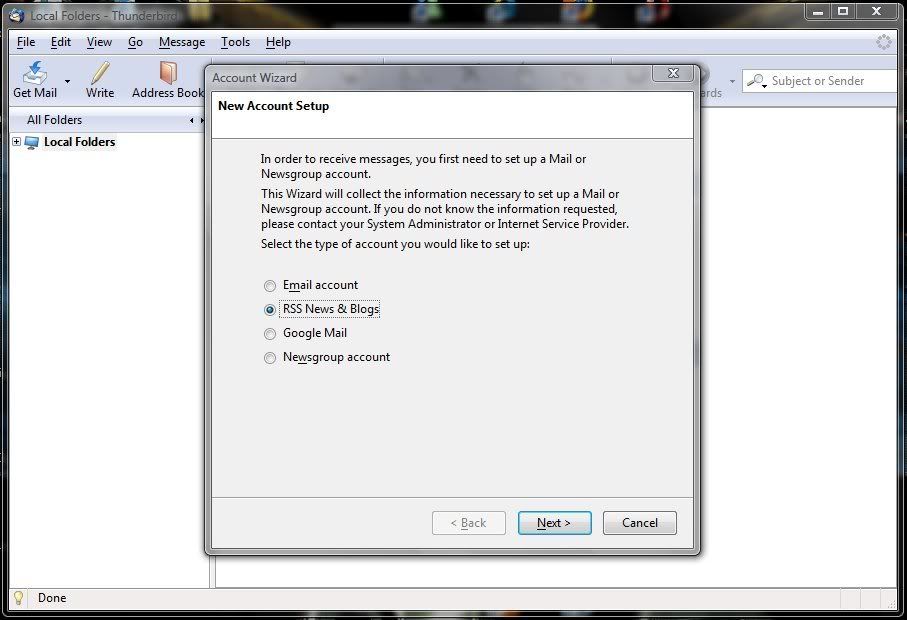
Create an account of 'RSS News & Blogs'. Next, Type in an account name.
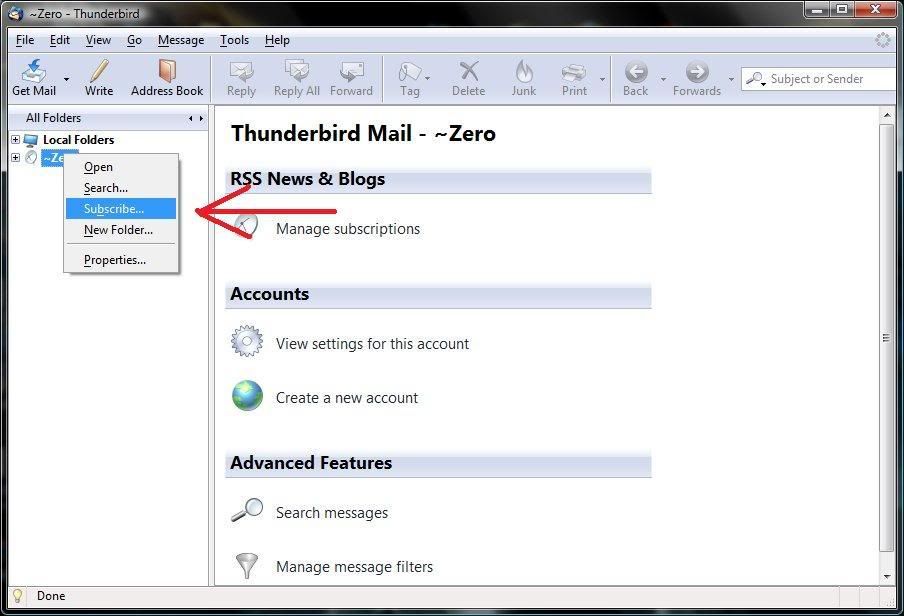
Right click on your account and choose 'subscribe'
Click the 'add' button, copy and paste the feed url into the box. The feed url can be found by clicking the rss button on websites, usually on the sidebar or the bottom of the site.
Some common rss button:


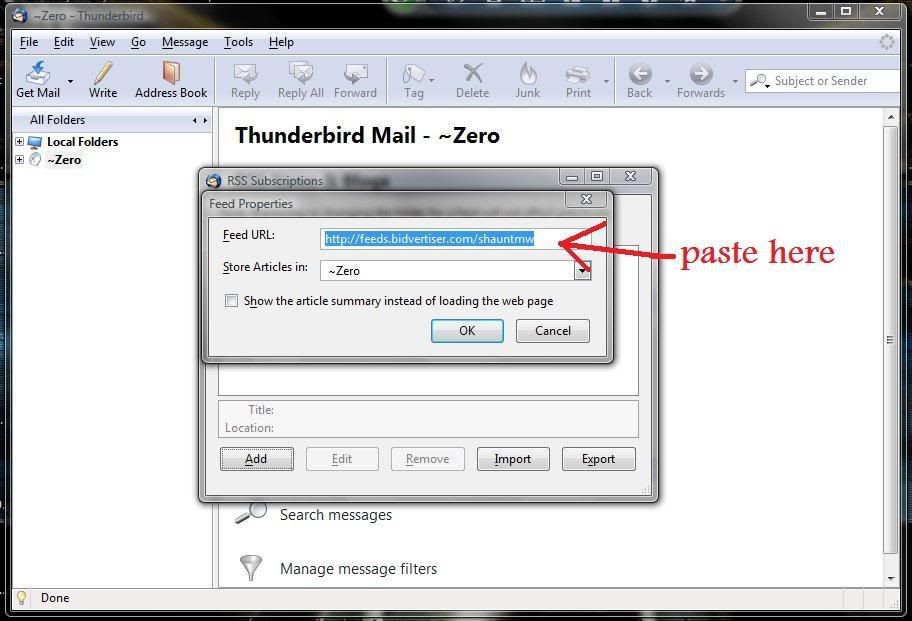
And finally, it will act as a rss reader for you. Unread posts are indicated with a star beside.
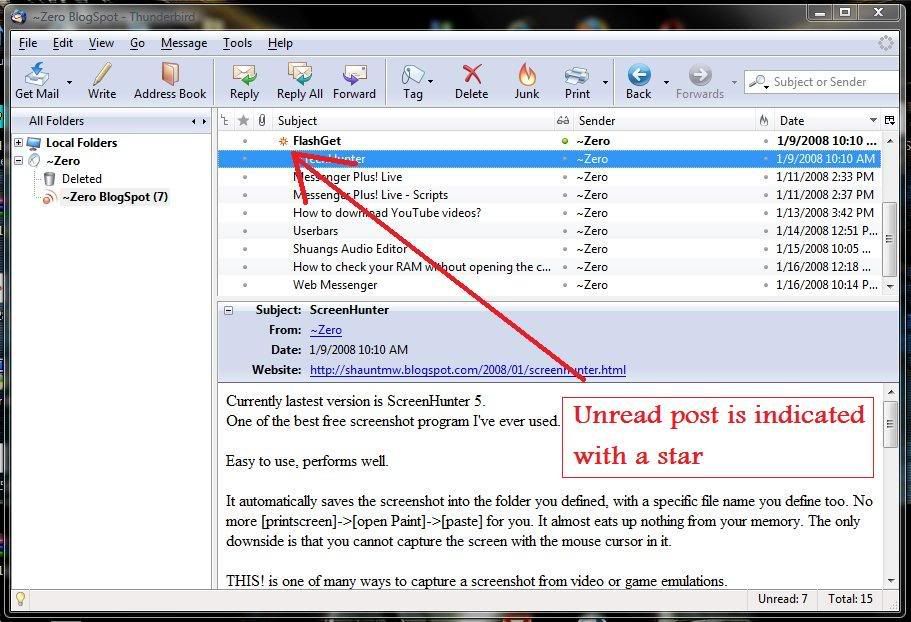
Viola~ done! So go on and subscribe to all your friends' blog and new sites as you want!
back to top
How to use rss on Google Reader?

Visit the Google Reader website at http://reader.google.com.
If you have a Google account, sign-in.
If you don't, sign-up one.
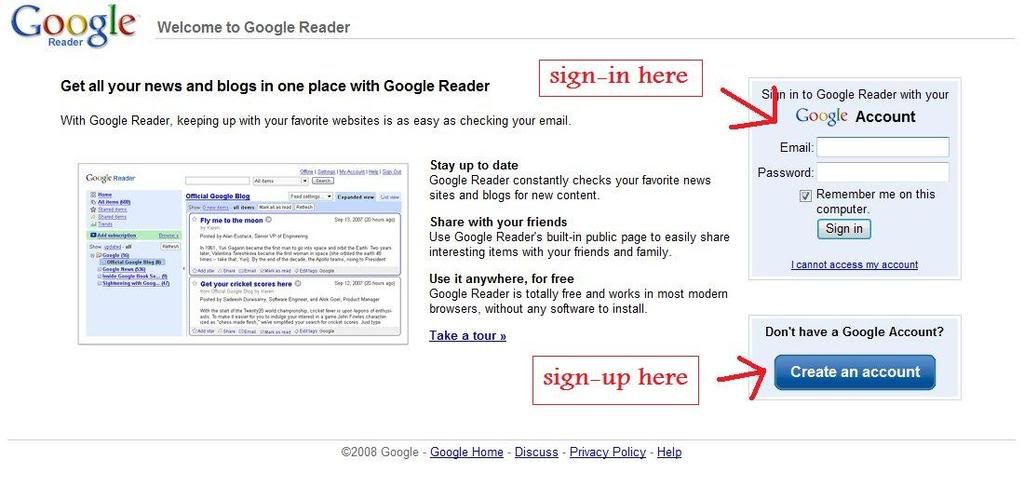
Once you sign-in/sign-up, you'll be redirected into your feed reader. To add a subsciption, click on the 'add subscription'
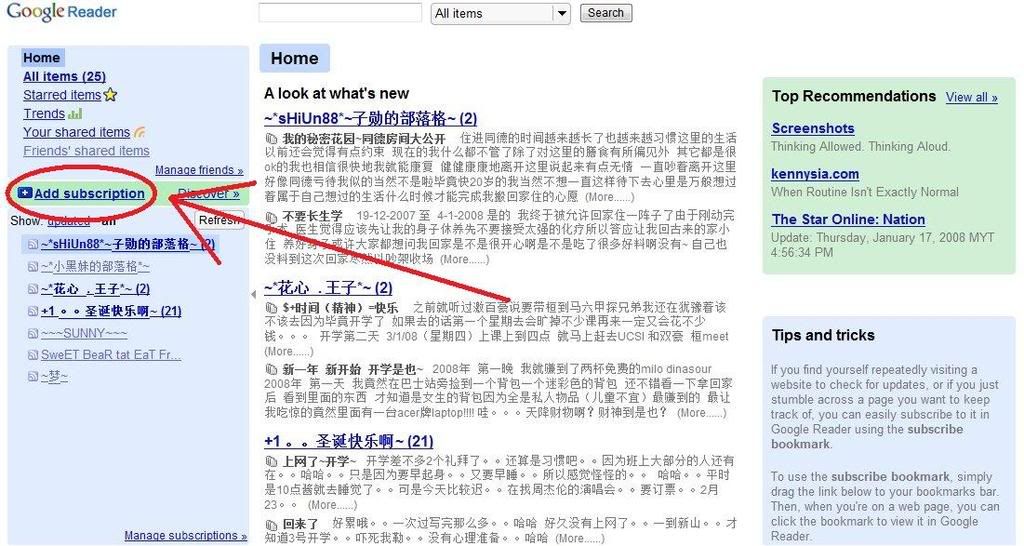
Copy and paste the feed url into the box and click 'add'. The feed url can be found by clicking the rss button on websites, usually on the sidebar or the bottom of the site.
Some common rss button:
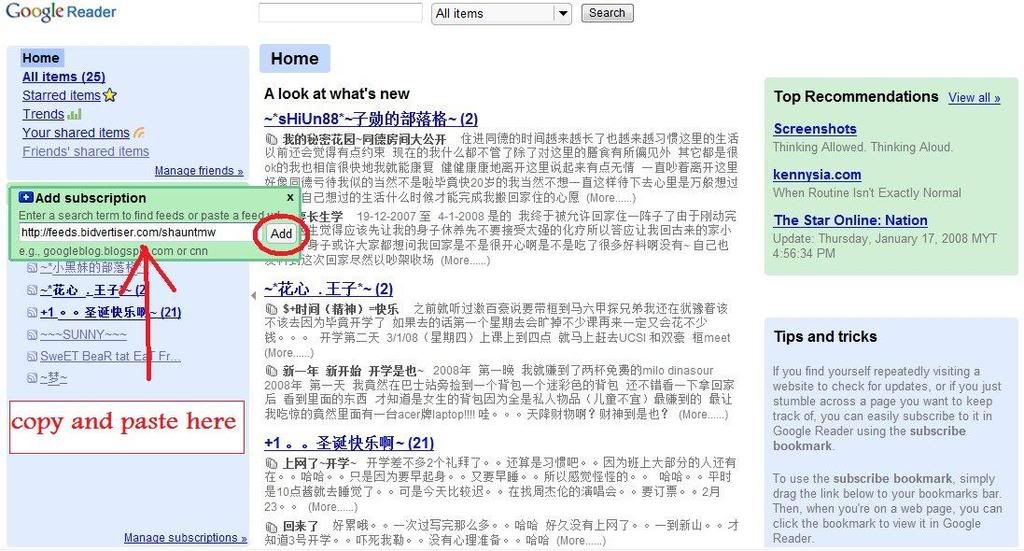
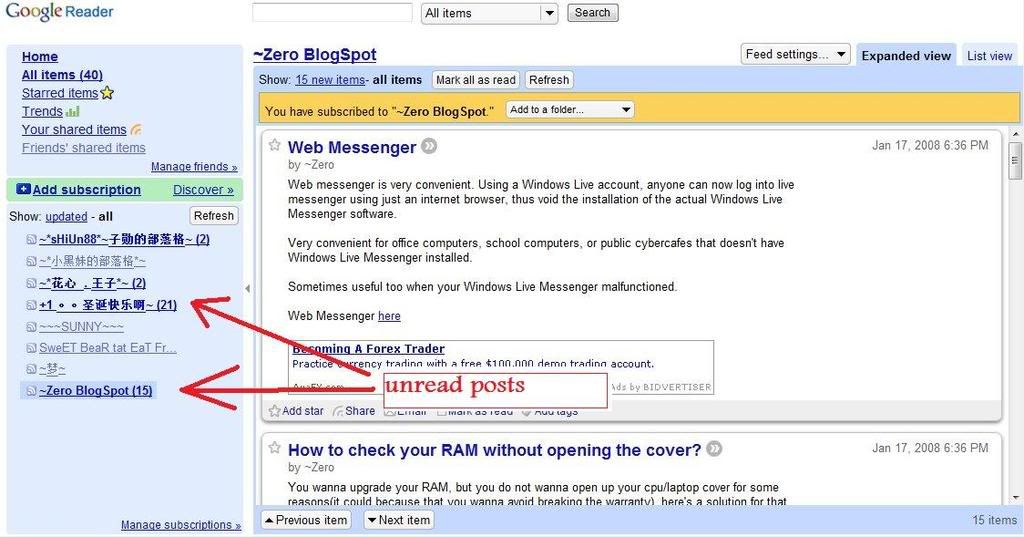
Finally, the unread posts will be bolded.
Viola~ done! So go on and subscribe to all your friends' blog and new sites as you want!
back to top
External Links:
RSS from wikipedia
A list of RSS readers from wikipedia
Search for RSS using Google
More information on Firefox
07 January, 2008
Opera Web Browser
Yet another Internet browser.
So, it seems that Internet Explorer and Mozilla Firefox is the top leading Internet browser. They hold the top and 2nd most users of all Internet browsers. However...
For Windows user: THIS!
THIS! is faster than them both.
I'll just cut down the introductions. It has almost any and every functions the other Internet browsers have. Tabbed browsing, download manager...etc. The main point is...IT IS FAST!!!(for Windows)
The only downside is, some website may only be specifically designed for IE or Firefox, then sometimes Opera may not work well for some websites. Example imeem.
But, do not be disapointed.
I'll empathize again...
IT IS FAST!!!!!!!!!!
Try it, and you won't be disappointed.
External Link:
Opera Official Website
Opera from wikipedia
Comparison of browsers speed


05 January, 2008
Mozilla Firefox
Got an internet browser?
All Windows user will have Internet Explorer preinstalled.
Here, I'd recommend everyone to try/use this popular internet browser. An alternative to IE.
The Legendary Mozilla Firefox!!!
It's faster, safer, smoother, and (for advanced user) more flexible.
So...It's very well known, so...Let's not waste too much time.
Here are all you need.
Download

