This BlogSpot, I'll publish some IT related software, news or experience. Any comments or suggestions are accepted. Feel free to look around! ^^

Showing posts with label Application Launcher. Show all posts

19 July, 2008

AppLocale Utility

Sometimes you may come across some non-Unicode based software/program that you can't possibly run without changing and system locale (which requires a Windows reboot), but after changing the system locale, some other software/program messed up!

One simple solution for all of this: The AppLocale Utility

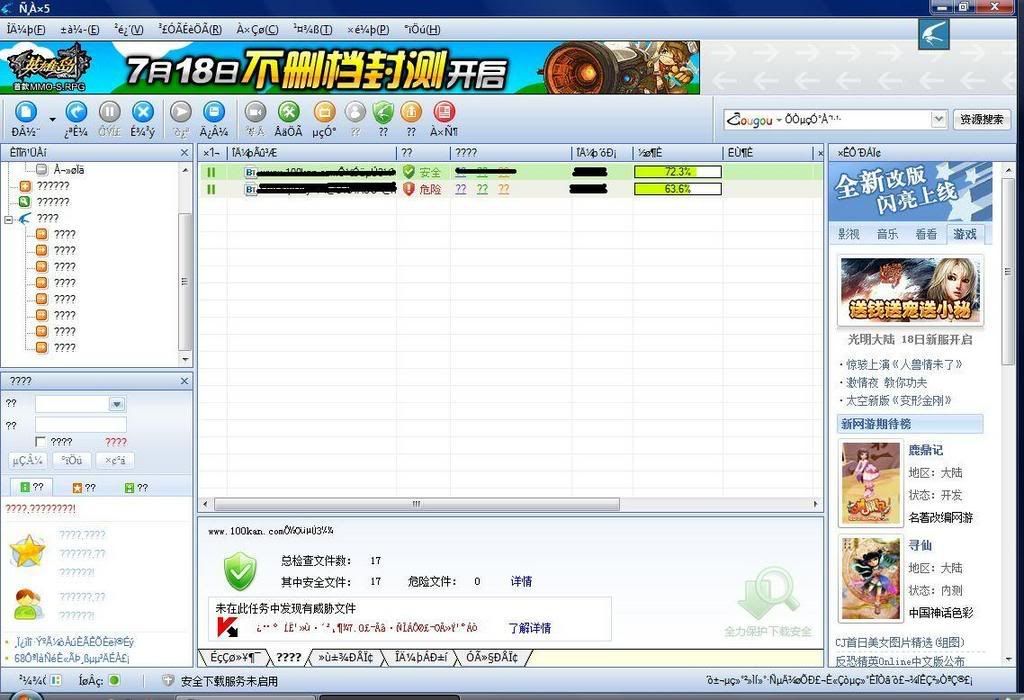
Offered by Microsoft for free download, AppLocale emulates the software/program using the chosen system locale. Below is an example of a chinese software that run with/without changing the system locale.

Before changing the system locale: (Garbage characters everywhere)
click to enlarge


After changing the system locale (or using the AppLocale)

click to enlarge


As you can see, using AppLocale saves you the time and effort to change the system locale everytime you want to run a specific software, without rebooting.


How to use:
1) Open up AppLocale
2) Choose Application
3) Select Language
4) Done

You will be promt to save the shortcut of the 'AppLocaled' software if you want, so whenever you wanna open that software you don't need to open up AppLocale everytime.


you can download AppLocale from here
10 July, 2008

Hide your important folder (Part 2)

This post shows you how to make the folder invisible to hide files, while still get easy access to it. And now I have a part 2, which also hides folder while still get easy access to it, by using an App Launcher like Humanized Enso.


The App Launcher Humanized Enso has an interesting feature of "learning" new commands, and this is how we make use of it.

Step 1: Create a new folder
Step 2: Learn the new command
Step 3: Hide the folder


Step 1: Create a new folder
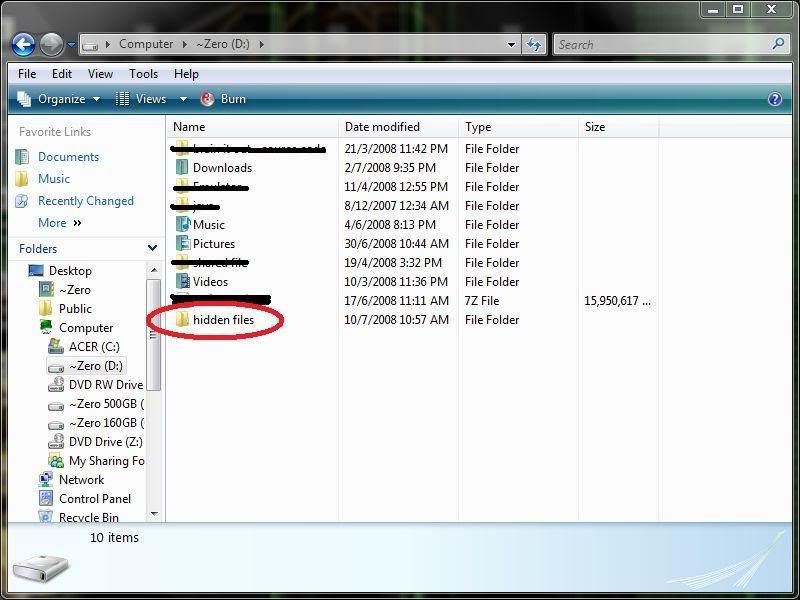
Just create a new folder and rename it as whatever you like. For example below, I name my new folder as "hidden files".

click to enlarge


Step 2: Learn the new command
Highlight the folder, open up Humanized Enso (by default is holding the CapsLock key), and learn as a new command, for example below I learn it as Open windows files. You would want the new command be hard to guess but easy to remember.

click to enlarge


Step 3: Hide the folder
Right click on the folder, choose properties. Under attribute, tick for hidden. Click on OK, done. The folder is now hidden, and yet you can simply access to the hidden folder by using the enso command you assigned just now.


More information on Make the folder invisible to hide "important" files.
More information on Humanized Enso

11 April, 2008

Humanized Enso

Wow~~~~
THIS THING IMPRESSED ME!!!!!!!!

This...kinda like app launcher but not an app launcher...

IT JUST MAKE ALMOST ANYTHING A SHORTCUT!!!!

With Humanized Enso, I can open any apps, any folder, any website...with just some keyboard typing!

Oww...I can't explain more.
Just go ahead and try it yourself.
The download link: http://humanized.com/enso

They have an Enso Launcher and an Enso Word.

With Enso Launcher, I can...
Open up IE this way...
click to enlarge
Key sequence: [Winkey] -> Letter "o" -> [Tab] -> "ie" -> [Enter]

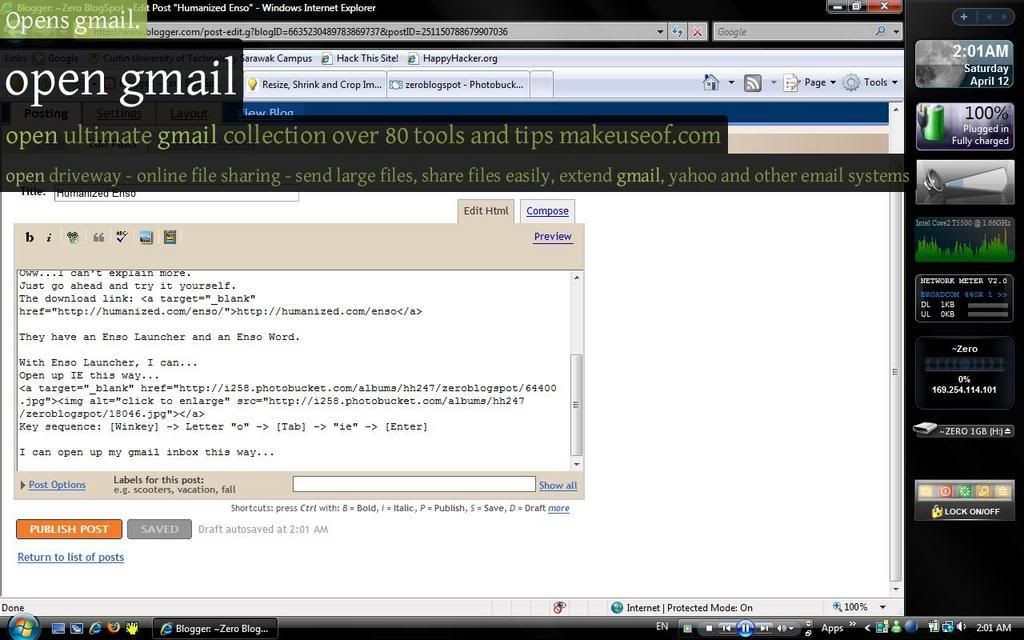
I can open up my gmail inbox this way...
click to enlarge
Key sequence: [Winkey] -> "o" -> [Tab] -> "gmail" -> [Enter]

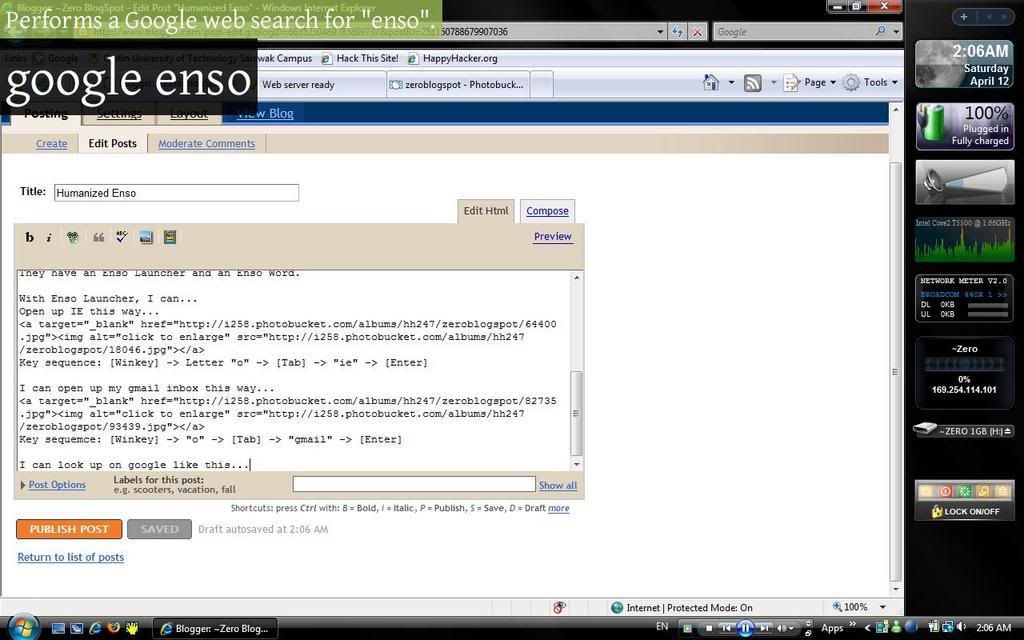
I can look up on google like this...
click to enlarge
Key sequence: [Winkey] -> "goo" -> [Tab] -> "enso" -> [Enter]

And before I publish this post, I can do a spell check this way...
click to enlarge
Key sequence: [Winkey] -> "spel" -> [Tab] -> [Enter]


Ok, ok, there're more.
If I am to put every screenshot of every function, it'll be veeeeeeeery long post for this blog. So I just list out some useful stuff.

Humanized EnsoLauncher can do:
- Open Application
- Open File/Folder
- Open website

Humanized EnsoWord can do:
- Google a term
- Find definition for a term (Online)
- Spellcheck
- Calculate
- Change text uppercase/lowercase

There're more. For more detailed tutorial/demo/explanation, go visit their website.

Download Humanized Enso from here