This BlogSpot, I'll publish some IT related software, news or experience. Any comments or suggestions are accepted. Feel free to look around! ^^

19 July, 2008

AppLocale Utility

Sometimes you may come across some non-Unicode based software/program that you can't possibly run without changing and system locale (which requires a Windows reboot), but after changing the system locale, some other software/program messed up!

One simple solution for all of this: The AppLocale Utility

Offered by Microsoft for free download, AppLocale emulates the software/program using the chosen system locale. Below is an example of a chinese software that run with/without changing the system locale.

Before changing the system locale: (Garbage characters everywhere)
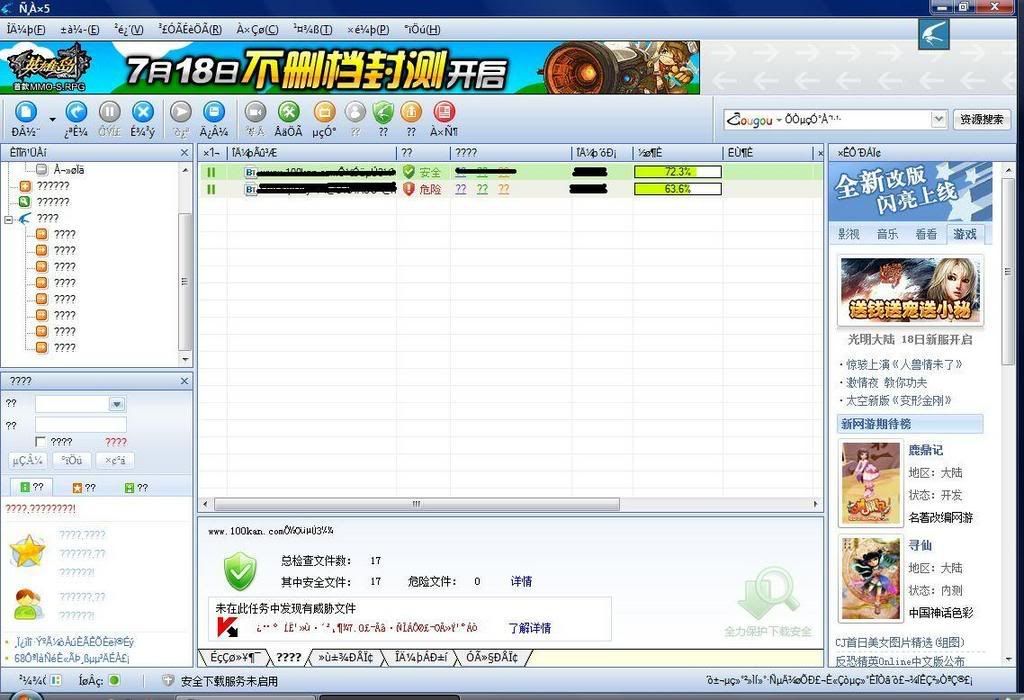
click to enlarge


After changing the system locale (or using the AppLocale)

click to enlarge


As you can see, using AppLocale saves you the time and effort to change the system locale everytime you want to run a specific software, without rebooting.


How to use:
1) Open up AppLocale
2) Choose Application
3) Select Language
4) Done

You will be promt to save the shortcut of the 'AppLocaled' software if you want, so whenever you wanna open that software you don't need to open up AppLocale everytime.


you can download AppLocale from here
17 July, 2008

Revo Uninstaller

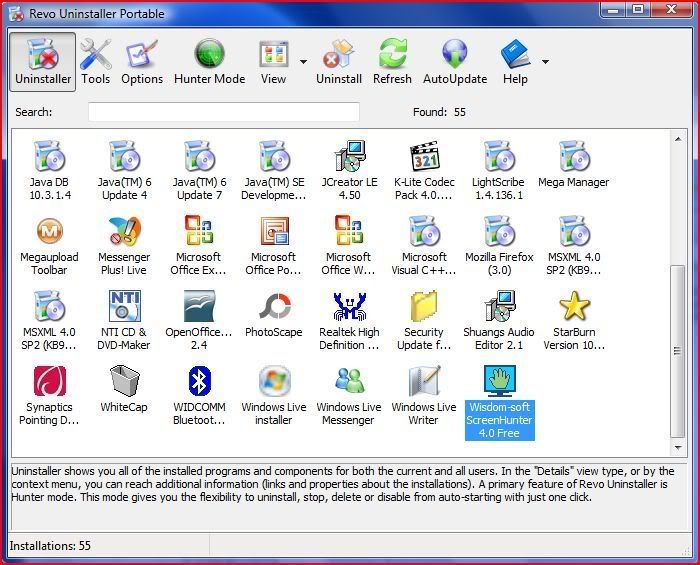
In the past, when I wanna remove a program, I usually run the unintaller from Windows Add/Remove Program, for a clean uninstall, I usually restart immediately, open up program files and delete all of the left over directory, then I run CCleaner and make sure the program vanish completely from my PC. That was a lot of work, and may not be clean enough.

I came across a freeware, Revo Uninstaller.

click to enlarge


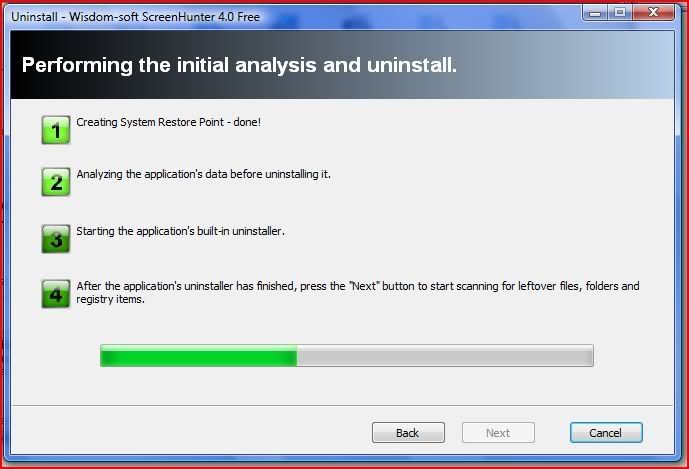
What it does after one click:
1) Create a restore point
2) Analyze program before uninstalling
3) Run program uninstaller
4) Scan for left over files

click to enlarge


That was neat!


Not only the uninstaller, it also has some built-in tools, like the Autorun Manager which lets you choose your startup program.

click to enlarge


Well, everyone've been complaining how slow your windows start, why not delete some unnecessary startup program. Just highlight the startup you don't want it to start during startup, and delete entry. I have only 5 programs for startup, it's faster this way (although still can't compete with xp, which my sidebar has been taking a lot of time starting up, and I can't live without it. yet.)

The interesting part of this Revo Uninstaller is its Hunter Mode and the Drag and Drop Mode.

The Hunter Mode, a crosshair like this appears on your desktop, just aim at any program interface or icon on the desktop and a context menu will show up for you to uninstall the pin-pointed program. This is useful when you know you have suspicious program but you can't find it anywhere in the uninstaller (Probably the program didn't install itself to the registry)
The Drag and Drop Mode, works the same as the Hunter Mode, except that you drag the program interface or icon into the fire (as if you're throwing the program into the fireplace).


Interesting isn't it?

The built-in Junk Files Cleaner works almost the same as CCleaner, except that CCleaner even scans for unused registry. Consider having both.

BE CAREFUL when uninstalling programs you don't know. You wouldn't want to accidentally uninstalled any hardware drivers or windows component. Consult Google when you come across unknown program.


Download Revo Uninstaller from here
More information on CCleaner

10 July, 2008

Hide your important folder (Part 2)

This post shows you how to make the folder invisible to hide files, while still get easy access to it. And now I have a part 2, which also hides folder while still get easy access to it, by using an App Launcher like Humanized Enso.


The App Launcher Humanized Enso has an interesting feature of "learning" new commands, and this is how we make use of it.

Step 1: Create a new folder
Step 2: Learn the new command
Step 3: Hide the folder


Step 1: Create a new folder
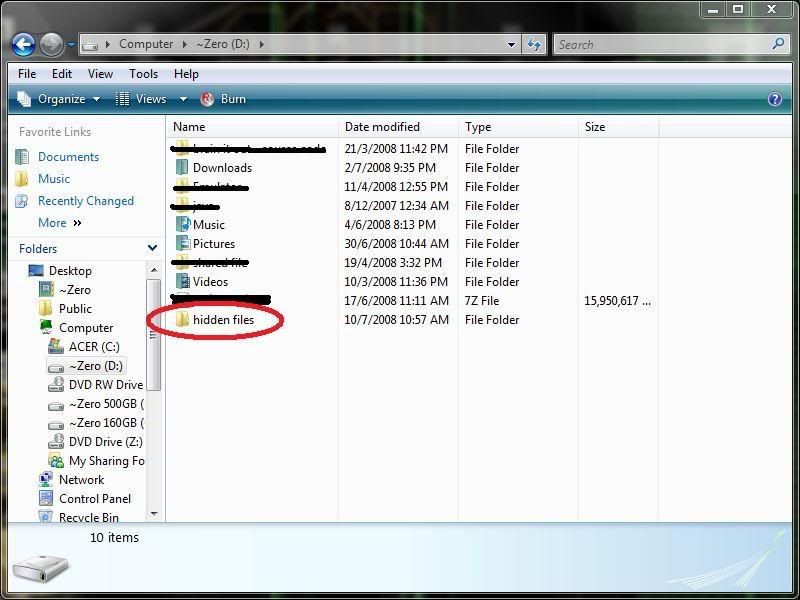
Just create a new folder and rename it as whatever you like. For example below, I name my new folder as "hidden files".

click to enlarge


Step 2: Learn the new command
Highlight the folder, open up Humanized Enso (by default is holding the CapsLock key), and learn as a new command, for example below I learn it as Open windows files. You would want the new command be hard to guess but easy to remember.

click to enlarge


Step 3: Hide the folder
Right click on the folder, choose properties. Under attribute, tick for hidden. Click on OK, done. The folder is now hidden, and yet you can simply access to the hidden folder by using the enso command you assigned just now.


More information on Make the folder invisible to hide "important" files.
More information on Humanized Enso